
Shopify Products Not Showing on Google? 7 Ways to Fix It
You have added products to your Shopify store. Your product photos look good, your prices are ready, and customers can place orders.
But there is one problem: when you search for your products on Google, nothing appears.
Why does this happen?
Your products may not be indexed by Google yet. Your store might also have a visibility setting, a technical issue, or missing product information.
The good news is that you can check these problems step by step.
In this guide, you will learn why Shopify products are not showing on Google and how to fix the most common issues.
Why Are Shopify Products Not Showing on Google?
There is an important difference between Shopify store search and Google Search.
- Shopify store search: Helps visitors find products inside your online store.
- Google Search: Helps people discover your store and products through Google.
A product can appear inside your Shopify store but still be missing from Google.
This may happen because Google has not discovered or indexed the product page, the page is hidden from search engines, or the store is not publicly accessible.
Let’s check the possible problems.
1. Make Sure Your Shopify Store Is Public
First, check whether people and search engines can access your store.
If your Shopify store is password-protected, Google may not be able to access your product pages.
To check:
- Log in to your Shopify admin.
- Open Online Store.
- Go to Preferences or your store’s password protection settings.
- Check whether storefront password protection is enabled.
- Disable it when your store is ready for public visitors.
Also, make sure your store is on an active plan and is not still using a trial storefront that cannot be indexed.
Important: Do not remove password protection from a private store before you are ready to launch it.
2. Check Whether Your Products Are Published
Your products must be published to the Online Store sales channel to be visible to customers and eligible for search discovery.
Follow these steps:
- Open your Shopify admin.
- Click Products.
- Select a product that is missing from Google.
- Find its publishing settings.
- Make sure the Online Store sales channel is selected.
- Save your changes.
Check a few important products first.
If a product is not published to the Online Store channel, customers may not be able to access it through your normal storefront.
You can read Shopify’s official guide here:
Shopify: Managing Searchability
3. Check If Your Product Is Hidden From Search Engines
Shopify allows store owners to hide certain products, pages, and blog posts from search engines.
One possible reason is a setting called seo.hidden.
If this metafield has a value of 1, the product can be hidden from search engines and your store’s sitemap.
Here is what to check:
- Open the product in Shopify admin.
- Scroll to the product’s metafields.
- Look for the SEO hidden setting, if available.
- Check whether it is set to
1. - If the product should be publicly searchable, correct the setting.
Do not change other metafields unless you understand what they do.
Shopify explains this setting in its official documentation:
Shopify: Managing Searchability
4. Submit Your Shopify Sitemap to Google
A sitemap is a file that tells search engines about important pages on your website.
Shopify automatically creates and updates a sitemap for your store.
You can usually find it at:
https://yourdomain.com/sitemap.xml

Replace yourdomain.com with your actual store domain.
To submit it:
- Open Google Search Console.
- Select your verified website.
- Click Sitemaps in the left menu.
- Enter
sitemap.xmlin the sitemap field. - Click Submit.
Google can use your sitemap to discover product pages, collections, and other important URLs.
However, submitting a sitemap does not guarantee that Google will index every page.
Read Shopify’s guide:
5. Check Whether Google Has Indexed Your Product Page
Sometimes your product is available online, but Google has not added it to its search index.
You can check this using Google Search Console.
Follow these steps:
- Open Google Search Console.
- Select your website.
- Copy the full URL of a product page.
- Paste it into the URL Inspection search bar.
- Wait for Google to check the page.
- Read the indexing status.
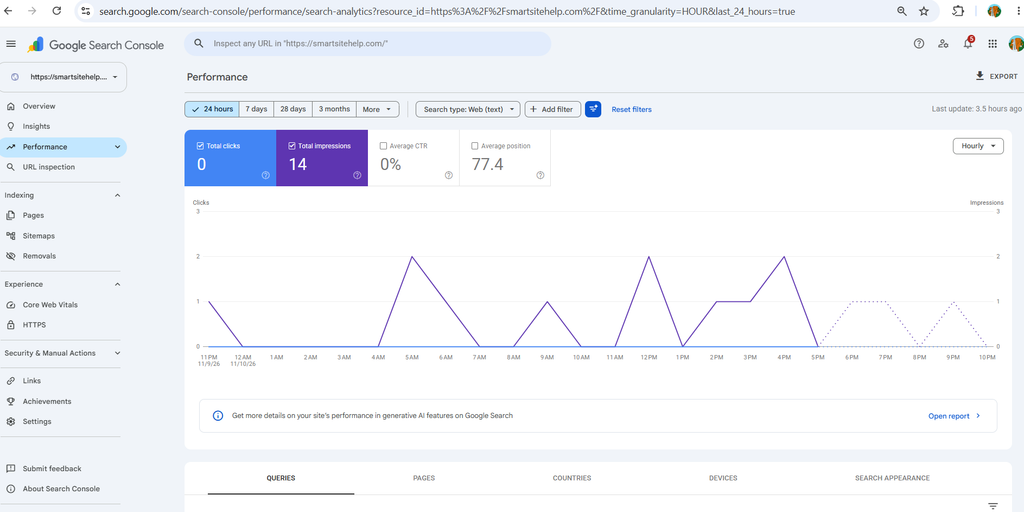
You may see messages such as:
- URL is on Google: The page is indexed.
- URL is not on Google: The page is not currently indexed.
- Discovered – currently not indexed: Google knows the URL but has not indexed it.
- Crawled – currently not indexed: Google visited the page but did not add it to the index.
If the page is eligible for indexing and there is no unresolved issue, you can use the Request Indexing option.
Do not submit the same URL again and again. Fix the problem first and give Google time to process the page.
6. Improve Your Product Titles and Descriptions
Google needs to understand what you are selling.
A product page with a vague title and a very short description may not give shoppers enough information.
For example:
Weak product title:
Black Shoes
Better product title:
Men’s Black Running Shoes for Everyday Training
Your product description should explain:
- What the product is
- Who can use it
- Its main features
- Its material or size
- What makes it useful
Also add clear product images and descriptive image alt text.
Avoid copying the same product description across many different products. Give each product accurate and useful information.
For more tips, read our guide:
Shopify SEO: 9 Easy Ways to Get More Visitors
7. Add Product Structured Data
Structured data helps Google understand information about a product.
For example, product structured data can describe:
- Product name
- Price
- Availability
- Brand
- Product reviews, when eligible
Some Shopify themes and apps already add product structured data automatically.
Before installing another SEO app, check whether your theme already provides it.
You can test a product page using Google’s Rich Results Test:
You can also read Google’s official product structured data guide:
Google Product Structured Data
Remember: structured data can make a page eligible for certain search features, but it does not guarantee rich results or higher rankings.
How Long Does Google Take to Show Shopify Products?
There is no fixed time.
Google may discover and process some pages quickly, while others can take days or weeks.
Some pages may not be indexed at all.
The time depends on several things:
- Whether Google can access your website
- Whether the product page is published
- Whether the page is hidden from search engines
- Whether Google can discover the page through links or your sitemap
- Whether the page provides useful and unique information
Keep checking important pages through Google Search Console instead of repeatedly submitting the same URL.
Shopify Product Not Showing on Google: Quick Checklist
Before moving on, check these items:
- My Shopify store is publicly accessible.
- My products are published to the Online Store channel.
- My important products are not hidden from search engines.
- My Shopify sitemap is submitted to Google Search Console.
- I checked the product URL using URL Inspection.
- My product titles and descriptions are clear.
- My product pages contain accurate information.
- I checked whether product structured data is available.
You do not need to change everything at once. Start with the first five checks.
Final Thoughts
If your Shopify products are not showing on Google, do not immediately assume that your store has a serious SEO problem.
Start by checking your store visibility, product publishing settings, and search engine visibility.
Then submit your sitemap and inspect important product URLs through Google Search Console.
Finally, improve your product information and check your structured data.
Remember, getting a page indexed and getting it ranked are two different things. Google may index your product page without showing it near the top of search results.
Work through these steps carefully and keep monitoring your results.
Frequently Asked Questions
1. Why are my Shopify products not showing on Google?
Your products may not be indexed yet, your store may be password-protected, or your products may not be published to the Online Store channel.
2. How do I get my Shopify products indexed by Google?
Make sure your store is public, publish your products, submit your sitemap in Google Search Console, and inspect important product URLs.
3. Does Shopify automatically submit products to Google?
Shopify automatically generates and updates your sitemap. Google can use it to discover pages, but this does not guarantee that every product will be indexed.
4. How do I know if Google has indexed my Shopify product?
Use the URL Inspection tool in Google Search Console. Enter the full product page URL to check its indexing status.
5. Does Shopify SEO help products rank on Google?
Good SEO can help Google understand your product pages. Clear titles, useful descriptions, correct visibility settings, internal links, and structured data can all help.
6. Can a Shopify product be visible in my store but missing from Google?
Yes. Shopify’s internal store search and Google Search are different systems. A product can appear in your store’s search but not yet be indexed by Google.
7. Does requesting indexing guarantee that my product will appear on Google?
No. Requesting indexing asks Google to process a page, but Google decides whether to index and show it in search results.
